Version history
Version history is available on the Enterprise plan.
Version history lets you return a demo or sandbox to an earlier saved version. To access it, open the menu in the top-left corner of the demo or sandbox editor and select Version history.
Versions are grouped by date, sorted by newest first. Expand a date to find the versions saved that day.
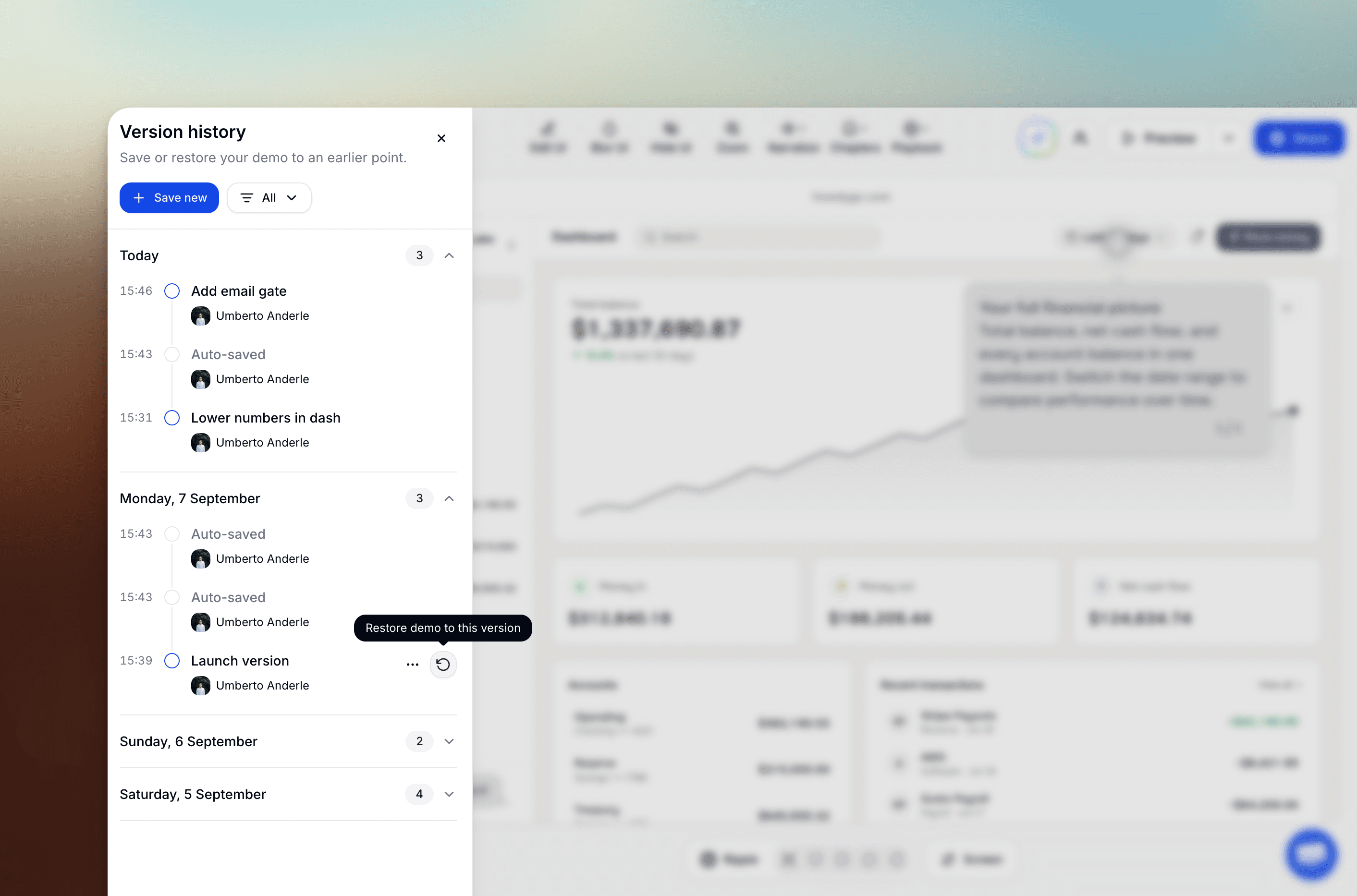
Automatic snapshots
HowdyGo periodically saves automatic snapshots as you edit your demos and sandboxes. These automatic snapshots are kept for 30 days. Give a snapshot a name to keep it until you delete it.
Saving and naming versions
To save the current demo or sandbox:
- Open Version history and click Save new.
- Enter a name that will help you recognize this version later.
- Press Enter to save.
You can also name an existing automatic snapshot. Open its three-dot menu and select Name version. To change a name, choose Rename version, enter the new name, and press Enter.
Named versions stay in your history until you delete them.
Restoring an earlier version
- Find the version you want to restore.
- Hover over it and click the restore icon.
- Confirm by clicking Restore.
Restoring replaces the current demo’s content with the saved version. HowdyGo automatically saves your pre-restore version so you can easily return to it if needed.
Deleting a saved version
Open the version’s three-dot menu, select Delete version, then confirm Delete. This permanently removes that saved version from history and cannot be undone.