Edit images in a demo
The image editor lets you edit an image step or an image inside your recorded UI right within HowdyGo.
Images editing can be run on anything that is captured as an image in HowdyGo including logos, screenshots, canvas-based charts and content, SVGs, and captured PDFs.
To launch the image editor for an image step, select the step and click Edit image in the top toolbar. To edit an image inside your recorded UI, click Edit UI, select the image, then click Edit image.
Blur
Use the Blur tool to obfuscate text or other details in an image. Simply select the tool and drag over the area. You can then move it, resize it, change its intensity, or delete it.
Cover
Use the Cover tool to hide an area in an image with a rectangle of a solid color. Simply select the tool and drag over the area. You can then choose a color, use the eyedropper to match a color in the image, move it, resize it, or delete it.
When coupled with the text tool, this is a great way to cover labels and then change them by writing a new one on top.
Text
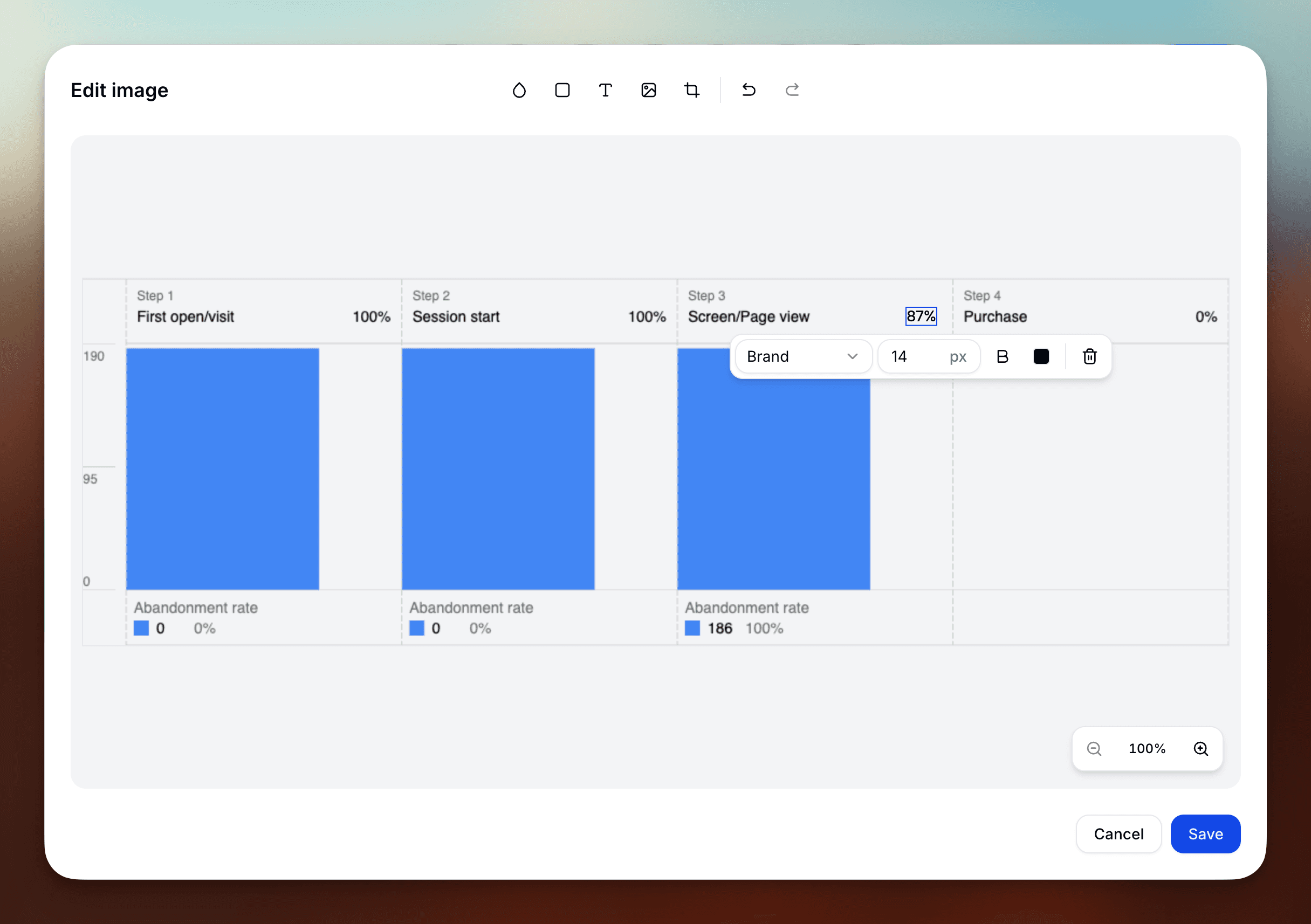
Use the Text tool to correct a label or add new copy to an image. Simply select the tool, click where you want the text to appear, and start typing. You can then change its font, size, weight, or color. Drag the text to move it, or double-click it to edit the copy.
Insert image
Use the Insert image tool to add a logo or another visual to an image. Simply select the tool and choose a PNG, JPG, JPEG, or WebP file. You can then drag the image into position or resize it.
Crop
Use the Crop tool to remove unwanted edges or focus on a smaller part of an image. Simply select the tool and move or resize the crop box. You can then enter the width and height you need, unlock the aspect ratio for a freeform crop, or click Reset crop to restore the full image.